Back Home

Finished project

MameDuo H2H

MameDuo.exe is a custom head-to-head arcade frontend that runs two game sessions side by side on a single PC and single display, allowing each player to load and change games independently without interrupting the other side.

Two live game sessions Independent left and right play Single PC, single display Standalone or frontend-ready
Simple selling line

MameDuo turns one machine and one screen into a live dual arcade system, where both players can play, swap, and reload games independently without interrupting each other.

Overview

A dual-instance arcade launcher built for real-time independence

What it is

MameDuo is a dual-instance arcade launcher built to run two separate game environments at the same time on one piece of hardware and one shared screen.

How it works

Each side operates independently, so the left and right players can launch, reload, and swap games live while the other player keeps playing.

Why it matters

It can run as an independent app or be built into a frontend, giving more flexibility for cabinets, versus displays, and custom dual-play arcade setups.

Full description

More than a normal one-game frontend

Two sessions together

Unlike a normal frontend that launches one emulator for one game, MameDuo manages two separate sessions together in real time on one machine and one shared display.

Live management tools

It handles window placement, side-by-side layout, overlays, controls, popups, and live swapping so both players can move between games without breaking the overall experience.

Built for H2H use

This makes it ideal for a head-to-head cabinet, versus display, or dual-play arcade setup where two users want independent game choice on a single machine.

Flexible deployment

Because it can work as a standalone executable or be integrated into a frontend flow, it suits both direct end-user installs and larger custom cabinet projects.

Screens
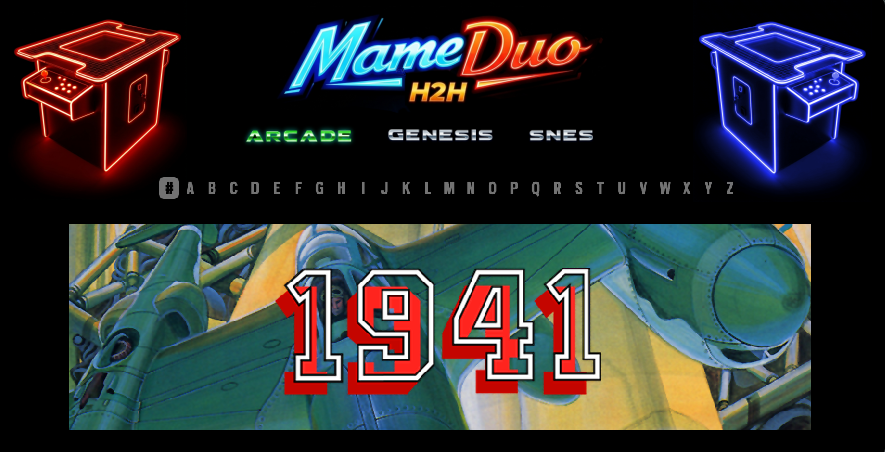
Branding, popup workflow, and showcase visuals

MameDuo H2H popup menu

Popup control flow

The popup flow supports the live dual-session idea by giving each side a controlled way to change, reload, and manage games without collapsing the other player's session.
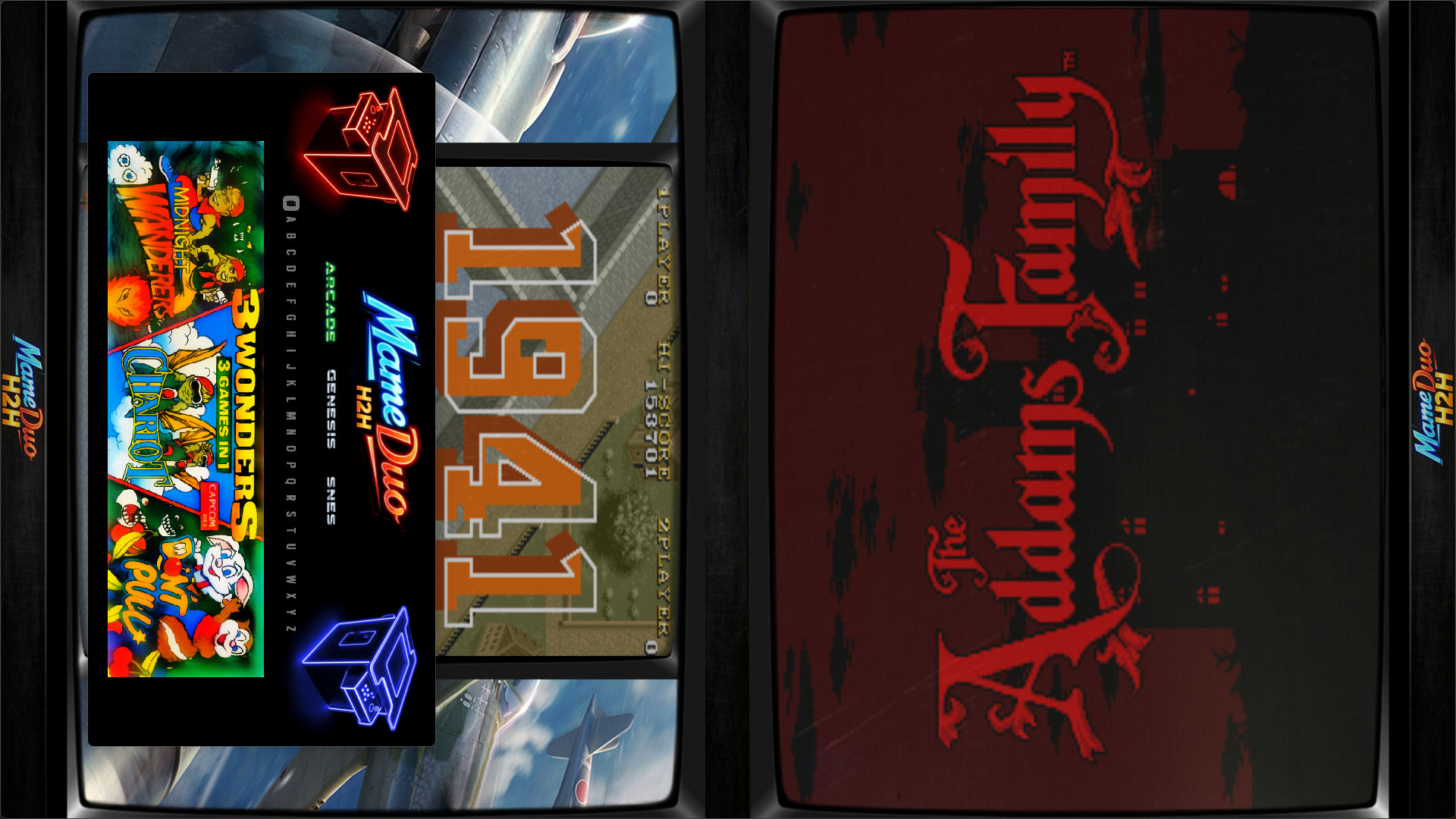
MameDuo H2H arcade and console showcase

Arcade and console direction

This visual direction shows how MameDuo can support a broader battle, versus, or pick-up-and-play experience rather than feeling limited to one rigid arcade presentation style.

Key benefits

Why this setup is useful

1

Less hardware, more flexibility

It runs two game sessions at once on one PC and keeps everything on a single shared display, reducing the need to build two separate machines for a dual-play setup.

2

Independent play per side

Each side can support independent gameplay and, where enabled, independent system selection, so one player can change games live without stopping the other side.

3

Built for live swapping

MameDuo is designed around real-time swapping, not just launching and closing games, which creates a more dynamic arcade battle and pick-up-and-play experience.

Guide reference

How the app works and how to launch it

How the app works

  • MameDuo is a two-player head-to-head launcher. The left player and right player each choose a system and a game from the menu.
  • Press `Enter` or `1` to launch both selected games into the left and right MAME windows.
  • Menu preview videos and background music can play when they are enabled in `config.cfg`.
  • The app can also start with a selected system, a custom config file, or `--skip` for an immediate random launch.

Launch options

  • `Normal`: run the app with no extra options.
  • `System`: `arcade`, `genesis`, or `snes`.
  • `Skip menu`: `--skip`.
  • `Alternate config`: `--config YourFile.cfg`.

Controls

Menu and gameplay keys

Left player

  • `Up`: previous game
  • `Down`: next game
  • `Left`: jump backward by first letter
  • `Right`: jump forward by first letter
  • `G`: change left player system

Right player

  • `I`: previous game
  • `K`: next game
  • `J`: jump backward by first letter
  • `L`: jump forward by first letter
  • `H`: change right player system

Global menu keys

  • `Enter`, `Return`, or `1`: launch the selected games
  • `M`: toggle menu music
  • `B`: quit MameDuo from the menu

Gameplay keys

  • `Escape`: return from gameplay to the main menu
  • `G`: open the left-side game swap popup during gameplay
  • `H`: open the right-side game swap popup during gameplay

Swap popup

Popup controls and helpful notes

Left popup

  • `G`: cancel left popup and return to gameplay
  • `T`: change left popup system
  • `Up`: previous game
  • `Down`: next game
  • `Left`: jump backward by first letter
  • `Right`: jump forward by first letter
  • `Enter` or `1`: confirm the new left-side game
  • `Escape`: abandon and return to the main menu

Right popup

  • `H`: cancel right popup and return to gameplay
  • `Y`: change right popup system
  • `I`: previous game
  • `K`: next game
  • `J`: jump backward by first letter
  • `L`: jump forward by first letter
  • `Enter` or `1`: confirm the new right-side game
  • `Escape`: abandon and return to the main menu

Helpful notes

  • The app hides the mouse pointer while it is running and restores it on exit.
  • The left and right MAME windows can each use their own artwork, bezels, and INI settings.
  • If images, music, or snaps do not appear, check the paths in `config.cfg` first.

Configuration

Editing `config.cfg`

MameDuo reads its settings from `config.cfg`. Keep this file in the same folder as the built EXE or script you are running. Edit it with Notepad or another plain text editor, then restart MameDuo for changes to take effect.

Common section

  • `systemMediaPath`: folder containing shared MameDuo media and system selector images
  • `bgImagePath`: main menu background image
  • `gameOverlay`: overlay image shown over the in-game MAME windows
  • `popupBgPath`: background image used by the in-game swap popup
  • `battleBtnImg` and `firstLetterPath`: extra menu artwork used by the frontend
  • `bgMusicPath`, `MusicOn`, `musicVolume`: menu music file and volume settings
  • `PreviewVideosOn`: true or false, controls whether menu snap videos play

MAME paths

  • `mameLeftExe` and `mameRightExe`: the MAME executable used for each player side
  • `mameLeftCwd` and `mameRightCwd`: the working folders for the left and right MAME installs
  • `LEFT_CTRLR_NAME` and `RIGHT_CTRLR_NAME`: controller or profile names used by the two sides

Systems

System sections and safe editing tips

Each supported system has its own section, such as `[arcade]`, `[genesis]`, and `[snes]`. These sections tell MameDuo where to find ROMs, logos, and preview videos for that system.

Per-system values

  • `romPath`: folder containing the games for that system
  • `logoPath`: folder containing marquee or logo images for the games
  • `videoPath`: folder containing preview snap videos
  • Arcade games launch normally from zipped ROMs.
  • Genesis and SNES use cart launch mode automatically when those systems are selected.

Safe editing tips

  • Make a backup copy of `config.cfg` before editing.
  • Keep Windows paths inside the value exactly as written, including drive letters and folder names.
  • Use true or false for on or off options such as `MusicOn` and `PreviewVideosOn`.
  • If artwork or videos do not appear, check the related path first.
  • If MAME does not launch, check the MAME exe path and working folder for that side.
  • After editing `config.cfg`, close and reopen MameDuo.

Get started

Download the guide and explore the H2H workflow

Use the H2H guide to understand the finished workflow and feature set. MameDuo can be used as its own app or integrated into a frontend when you want a flexible dual-session arcade experience on one machine.